
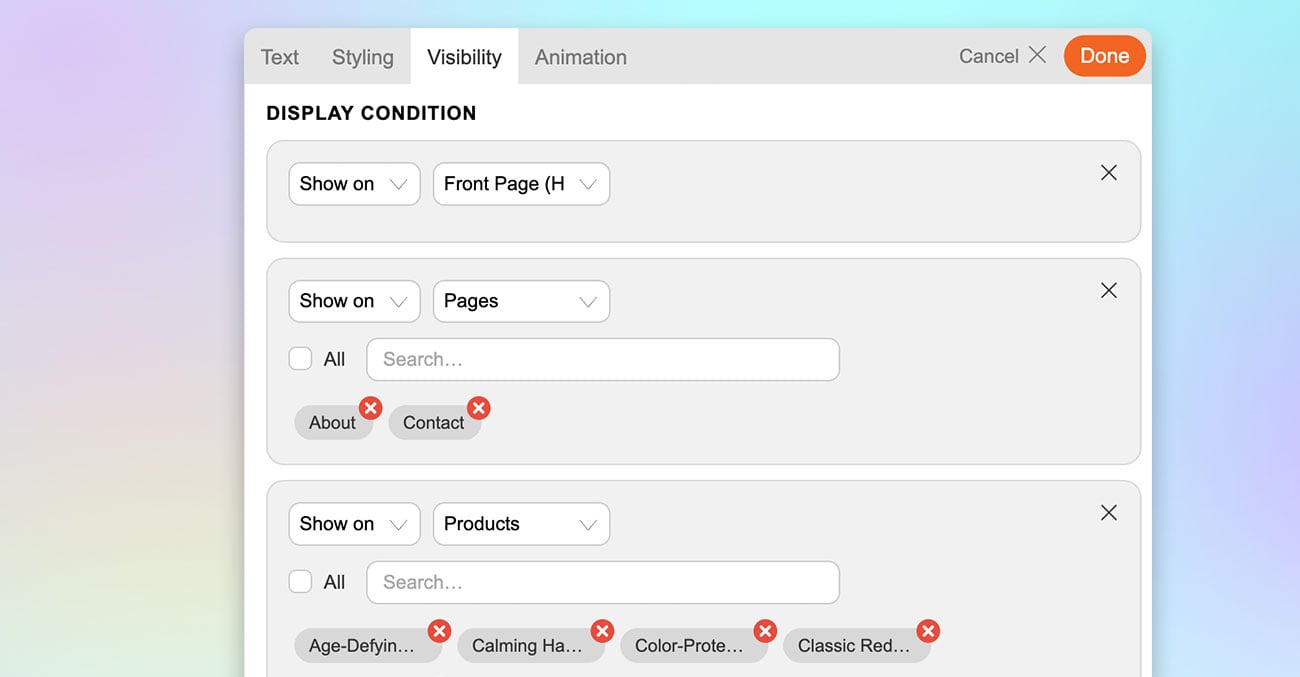
We are excited to introduce Display Conditions for Builder modules, sub-rows, and rows. This new feature gives you more control over when and where your content appears, making it much easier to build smarter, more dynamic websites. Instead of creating multiple versions of the same layout for different pages, posts, products, or user types, you can now manage everything from a single template. This helps reduce duplicate content, speeds up site building, keeps your layouts easier to maintain, and gives you more flexibility when creating personalised or time-sensitive content.
Display Conditions are especially useful for Builder Pro Templates and Layout Parts. You can choose to show or hide content on specific pages, posts, archives, products, categories, and more. Conditions can also be based on date and time, logged-in status, user roles, or custom field values. For example, you can display a promotional banner only during a sale period, show special content to logged-in users, or reveal a module only when a custom field is set to a certain value.
How to Assign Display Conditions
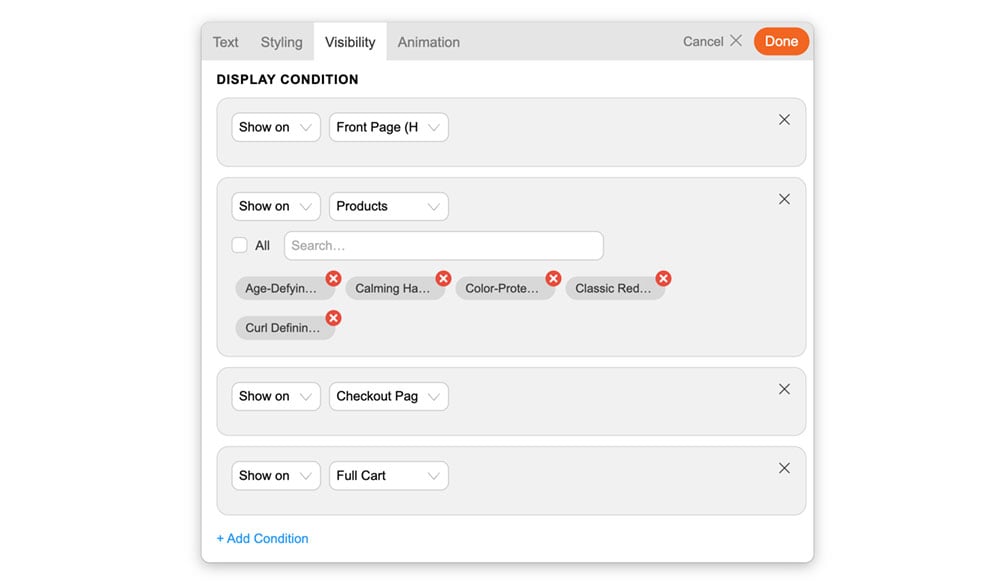
- Edit any module, sub-row, or row, then click Visibility and select Add Condition.
- Choose either a Show on or Hide on rule.
- Add one or more rules as needed. For example, you can set a module to Show on the Home page, but Hide on the About, Contact, and Portfolio pages.
- Select the condition option you want to apply.
General
- Entire Site – Applies to every page on the site.
- Front Page – Applies only to the homepage.
- 404 Page – Applies only to the not found page.
- All Singular – Applies to all single posts, pages, and custom post types.
- All Archives – Applies to all archive pages.
- Search Results – Applies to search result pages.
- Author Archives – Applies to author archive pages.
Pages
- Pages – Applies to all or selected pages.
- Child Pages – Applies to child pages of selected parent pages.
Posts
- Posts – Applies to all or selected blog posts.
- All Post Archives – Applies to blog archive pages.
- In Category – Applies to posts in selected categories.
- In Tag – Applies to posts with selected tags.
WooCommerce
- Shop Page – Applies only to the main shop page.
- Products – Applies to all or selected products.
- All Product Archives – Applies to all product archive pages.
- In Brand – Applies to products in selected brands.
- In Product Category – Applies to products in selected product categories.
- In Product Tag – Applies to products with selected product tags.
- Full Cart – Applies when the cart has items.
- Empty Cart – Applies when the cart is empty.
- Checkout Page – Applies only to the checkout page.
Others
- Date/Time – Applies during a selected date or time period.
- Login Users – Applies only to logged-in users.
- Logout Users – Applies only to logged-out users.
- Roles – Applies to selected user roles.
- Custom Fields – Applies when a custom field matches a value.
Support for Custom Post Types and Taxonomies
Display Conditions also work with custom post types and custom taxonomies. If your site includes additional post types or taxonomies created by plugins or custom development, they will automatically appear in the Display Conditions list, allowing you to build highly tailored layouts across your entire site.
Note
Display Conditions may not work as expected when server caching or cache plugins are enabled. For example, if a module is set to display only on a certain day or time, a cached version of the page may prevent the updated content from appearing. In some cases, you may need to disable caching or exclude specific pages or conditions from caching for the rules to work properly.
March 10, 2026 @ 2:08 am
That’s a really useful addition. It seems like a big step towards simplifying complex website setups.
March 10, 2026 @ 12:15 pm
Very nice and helpful. Thank you.
March 11, 2026 @ 4:44 am
I’ve been looking for this display condition feature. Perfect timing. I need that custom field condition to make a dynamic site.
March 11, 2026 @ 9:29 am
Yes! Great feature. One I’ve requested previously. Thank you for adding.
March 13, 2026 @ 5:27 am
Very nice. I just checked it. The custom field condition is very good especially it allows to check if custom field has certain values, then display/hide the module. Good work team.