
Creating rich, layered background effects in Themify Builder is now easier and more flexible. With the new multiple backgrounds feature, you can combine images and gradients in the same module, column, subrow, or row without relying on external design tools. Whether you want subtle overlays, colourful gradient blends, decorative patterns, or image collages, this update gives you more creative control directly inside the Builder.
The best part is that multiple backgrounds support responsive styling and hover states. You can customize different backgrounds and their options for desktop, tablet, mobile, and hover states.
How to Use Multiple Backgrounds
The multiple backgrounds feature is available in any module, column, subrow, or row that supports background styling.
To add multiple backgrounds:
- Edit any module, column, subrow, or row. Go to "Styling", open the "Background" accordion, specify the main background image or gradient layer, and then click "Add background" to add an additional background layer.
- You can select either "Image" or "Gradient" for each additional background. Within each layer, you can customize the background image and gradient options individually.
- Each newly added background will appear above the previous layer.
- You can add as many background layers as you want, but adding too many may increase the browser rendering load.
- Multiple backgrounds work with Builder responsive and hover styling. You can set different backgrounds for desktop, tablet, mobile, and hover states.
- Note: The "Add background" link is not available for some background types, such as video, slider, parallax scrolling, zoom scrolling, and zooming.
Sample Usages
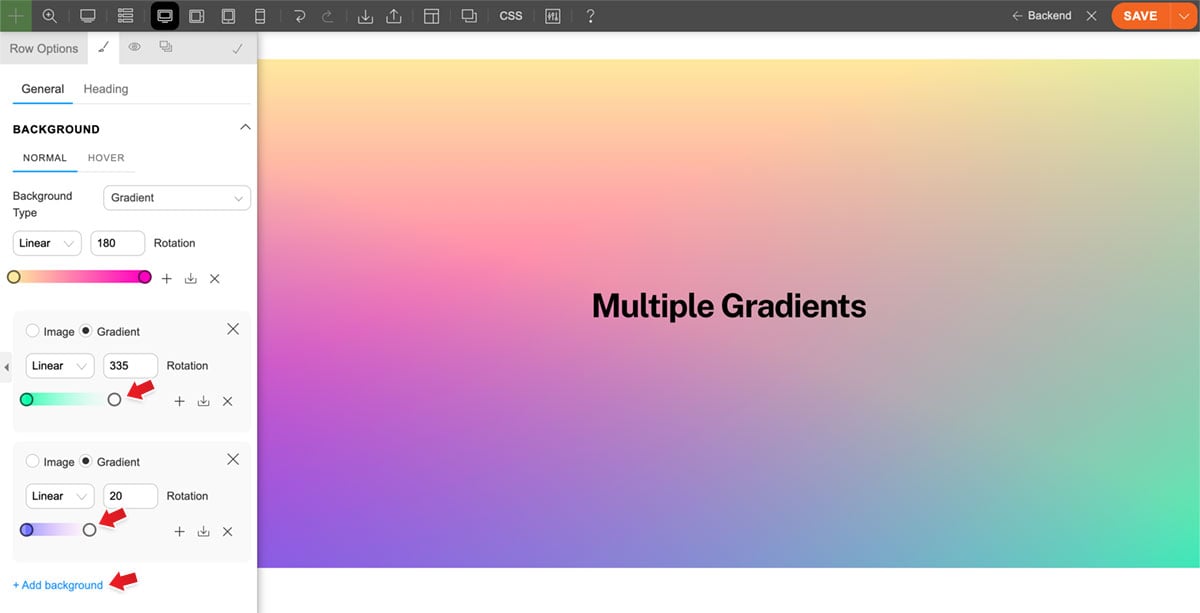
Colourful Multi-layer Gradients
No more boring single gradients. You can now add multiple gradient layers to create colourful gradient effects. First, create a base gradient from yellow to magenta, then add two more gradients from different angles. On the additional gradients, set one of the gradient stop colours to "0" opacity so the layers blend together instead of covering the gradient below.
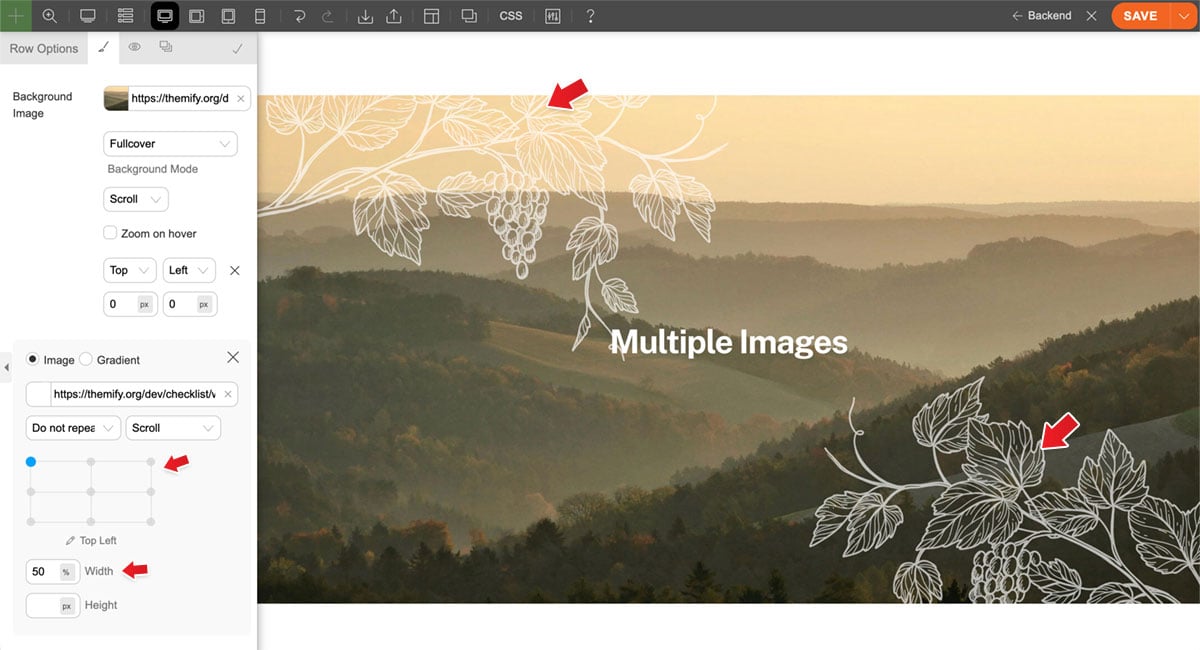
Multiple Images
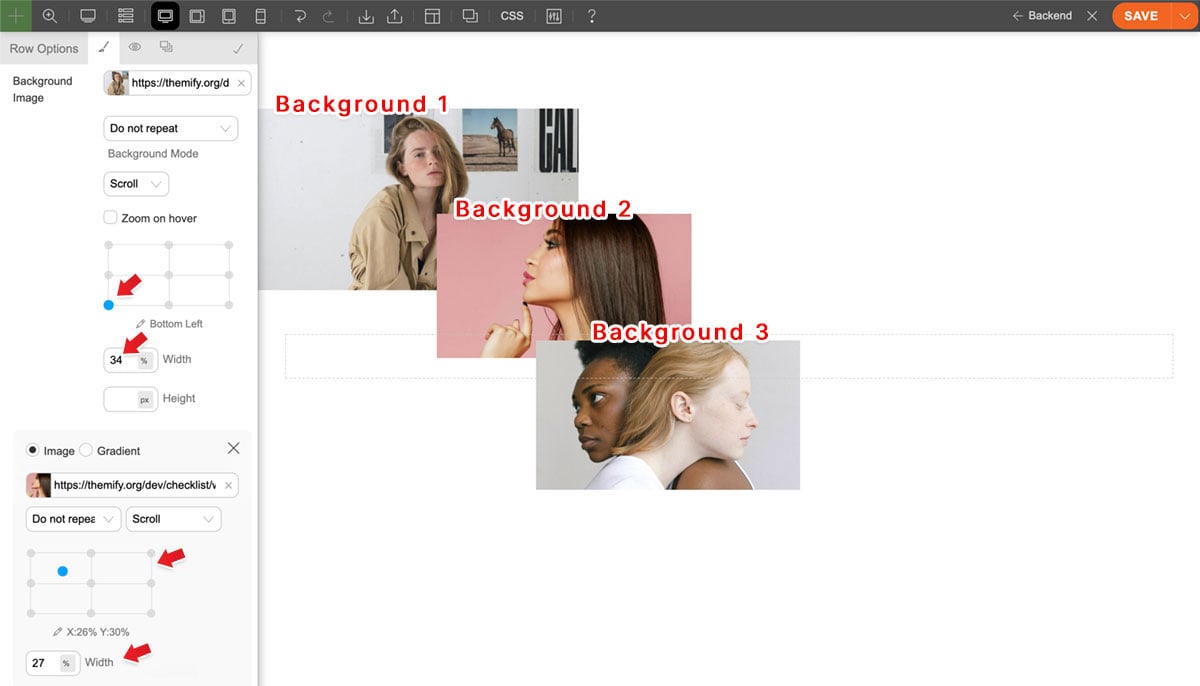
You can create a decorative background by overlapping multiple transparent images on top of the main background image. Set the main background image to full cover, then add two transparent pattern images, such as PNG files, above it. Use the background position and image width percentage to control each background image’s placement and size.
Mixture of Images & Gradients
You no longer need Photoshop to add gradient overlays on top of background images. Simply insert the background image as the base, then add multiple gradient backgrounds above it. Set the gradient stops with opacity to achieve the overlay effect.
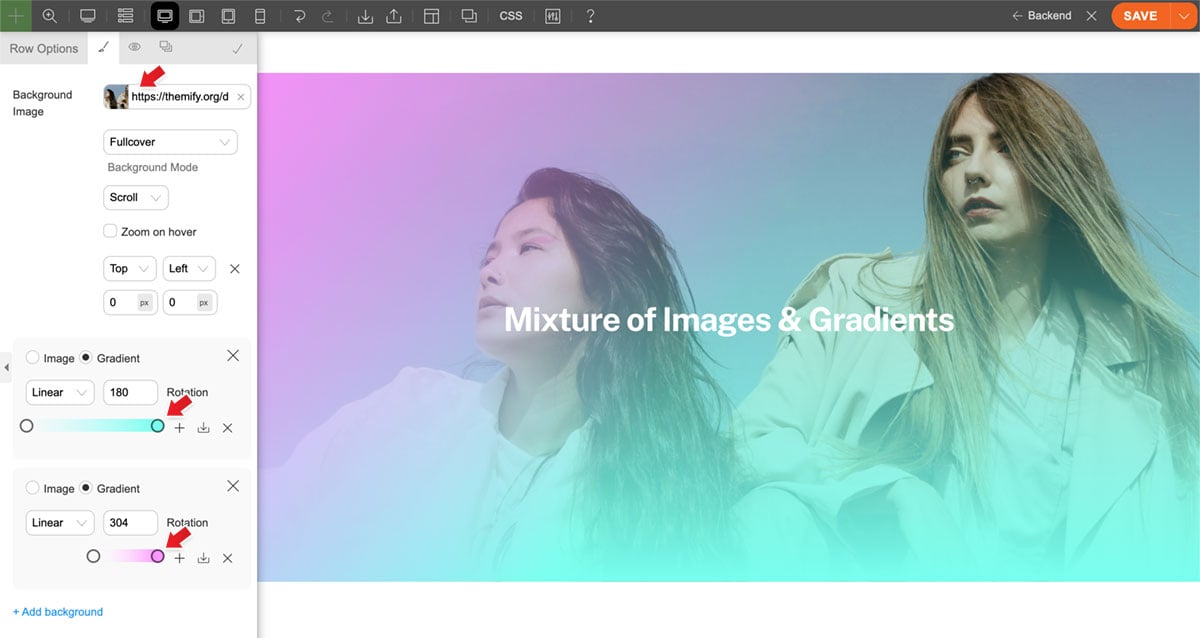
Image Overlay
You can also use multiple backgrounds to create an image overlay. If your background image does not provide enough contrast for the text, add a gradient overlay above the background image to improve readability.
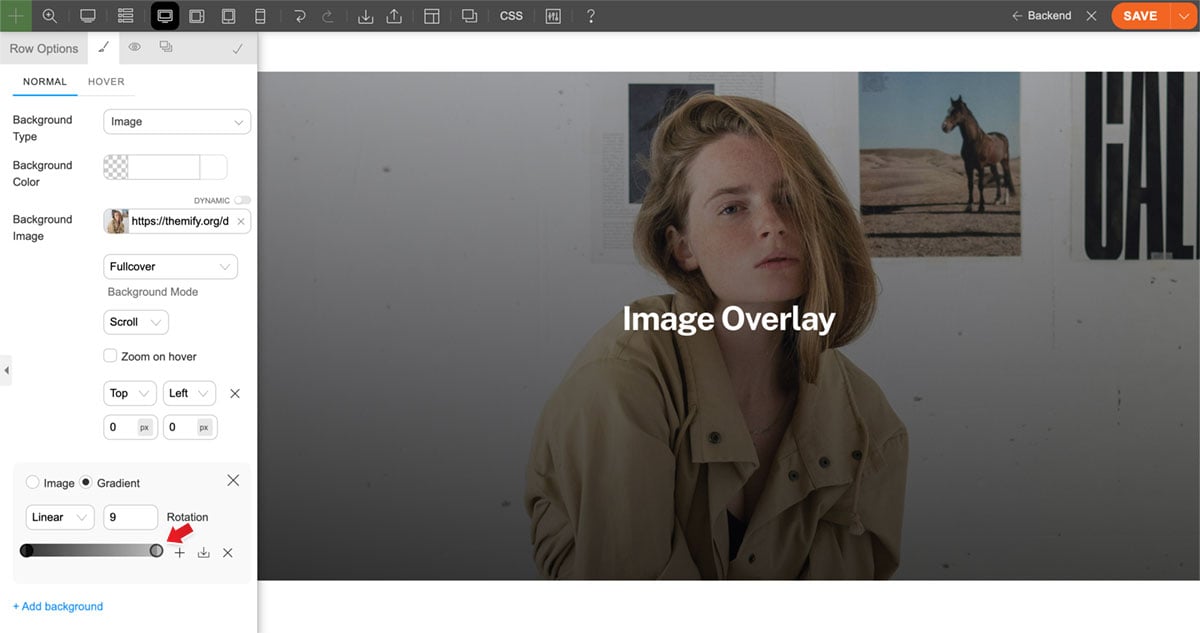
Image Collages
Using multiple backgrounds with background position and size controls, you can create image collages directly in the Builder. Tip: The most recently added background will appear on top.
Custom Background Position Inputs
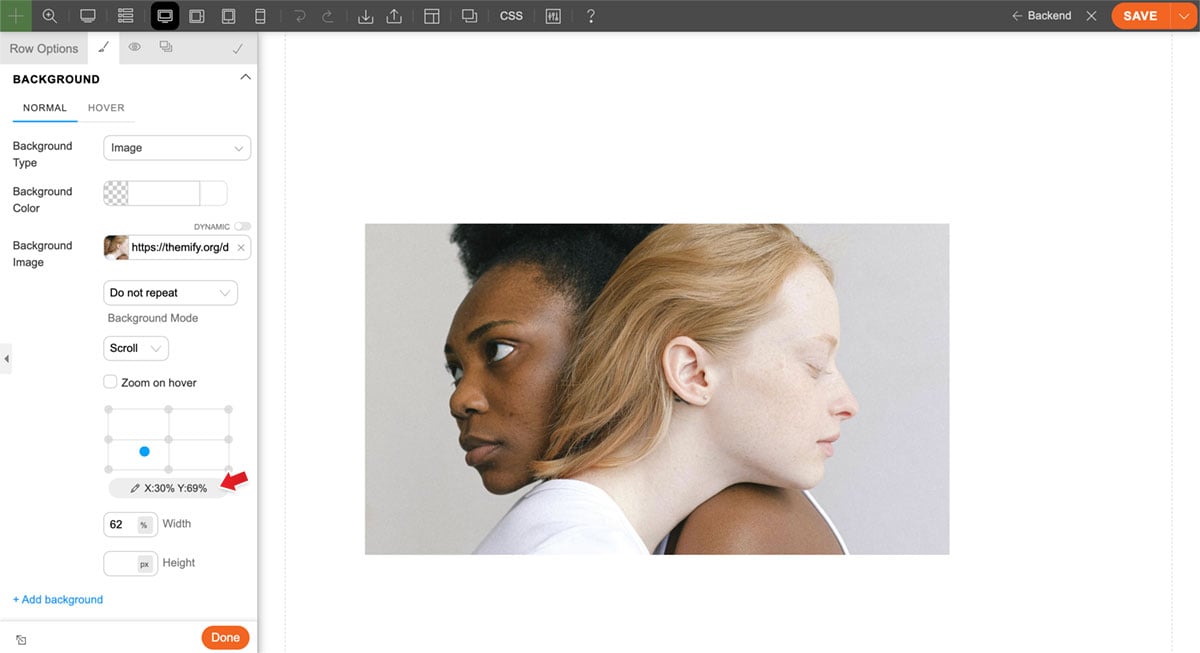
As part of this update, the Builder now allows you to enter custom background image positions. This means you can position background images more precisely. To enter a custom background image position, click the position label text below the position drag box, where the small pencil icon appears. You can then select either "Top/Bottom" or "Left/Right" and enter exact values. The position can also be a negative number, allowing you to place the background image outside the container.
Limitations
Technically, there is no limit to how many background layers you can add. However, it is best to avoid using excessive multiple backgrounds, as they may affect browser rendering performance. The multiple backgrounds feature is handled with pure CSS, so it does not work with background modes that rely on JavaScript, such as parallax scrolling, zoom scrolling, zoom, video, and background slider.
May 7, 2026 @ 1:07 pm
nice update, really its amazing
May 7, 2026 @ 8:18 pm
Ahh trop bien, j’ai hâte de l’éssayer ! 🤗
May 8, 2026 @ 6:39 am
I like it, I’m going to give it a go, I have a few ideas I want to try 👍
May 12, 2026 @ 6:50 pm
Nice feature great for layering 😍