
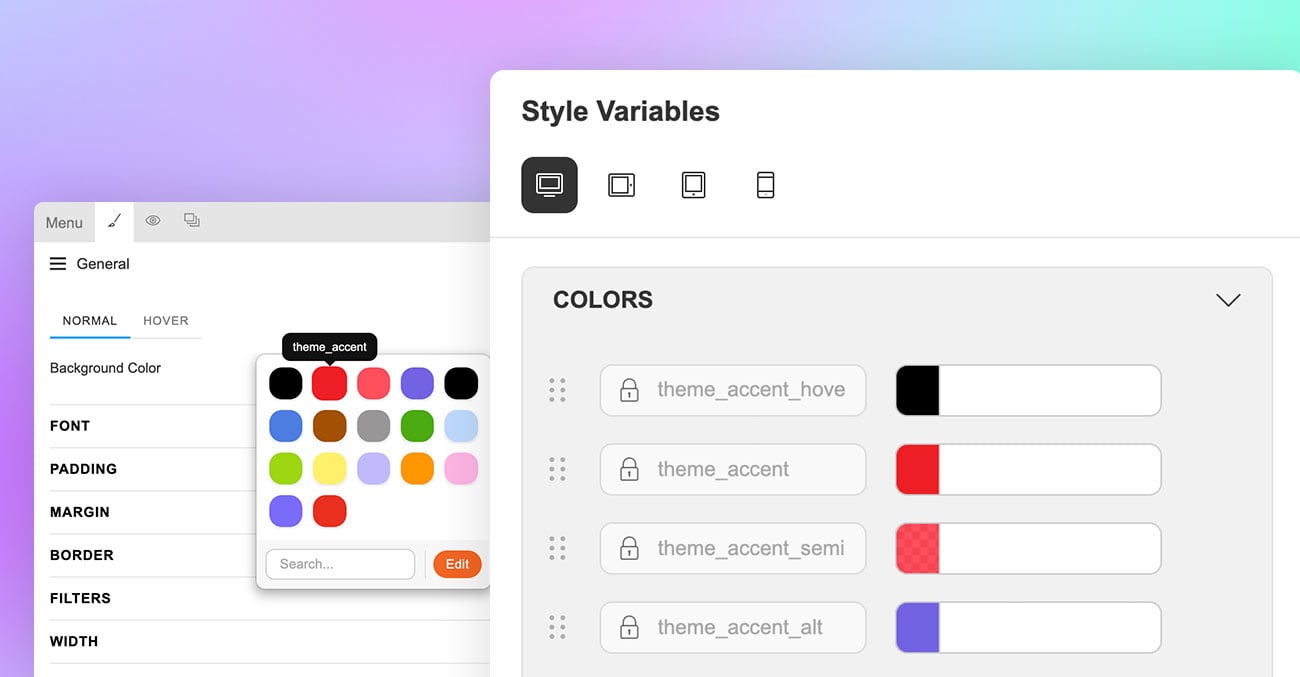
We are excited to introduce new Themify updates that give you more design flexibility, improve workflow efficiency, and create a smoother front-end experience. This release includes Layout Part mobile menus, an enhanced Style Variables interface with Builder preset color variables, and improved dark mode rendering with no visible delay on page load.
Layout Part Mobile Menu
The Builder Menu module now allows you to select a Layout Part as the mobile menu. This gives you the freedom to design custom mobile menus directly with the Themify Builder, instead of being limited to a standard dropdown or slide-out menu.
You can build mobile menus with any Builder modules, including logos, icons, menus, contact information, social links, banners, featured products, and custom layouts. This makes it easier to create a mobile navigation experience that matches your site design and branding.
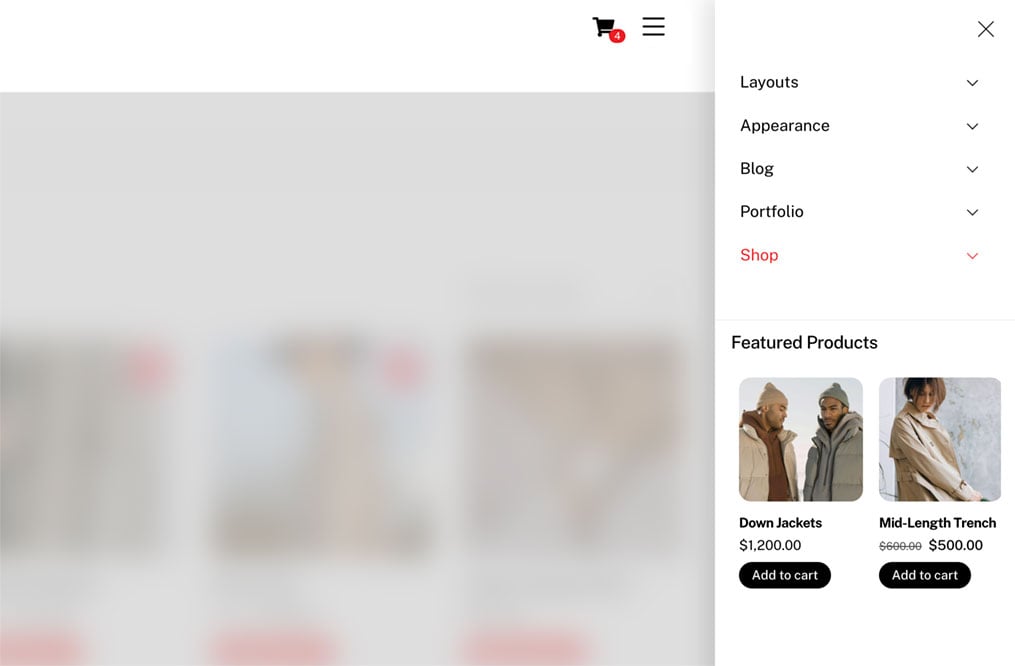
To set a Layout Part as mobile menu: drop in a Menu module, enable Mobile Menu option, then select the Layout Part.
Enhanced Style Variable UI and Preset Color Variables
Since the release of the Style Variables feature, it has become one of the most popular Themify features. Many users rely on it to manage reusable design values such as colors, spacing, fonts, and other global styling options.
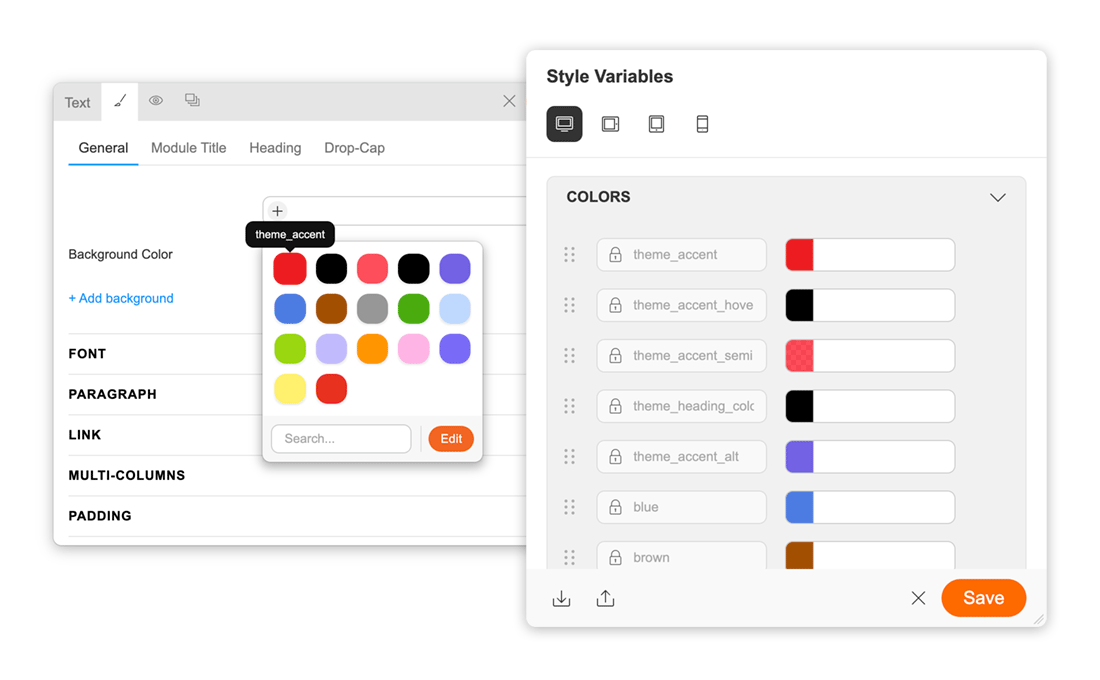
To make variables easier to manage, the interface now displays them in a clean grid layout with hover tooltips. A quick search has also been added, making it faster to find variables on sites with many custom values.
Variables can now be sorted with drag and drop, giving you more control over how they are organised. We have also added Builder preset colors as variables, so you can reuse the same colous consistently throughout your entire site.
No Render Delay Dark Mode
The dark mode feature available in Ultra and Shoppe has been improved to prevent render delay while the page is loading. Previously, some pages could briefly flash in light mode before the dark mode styling finished loading.
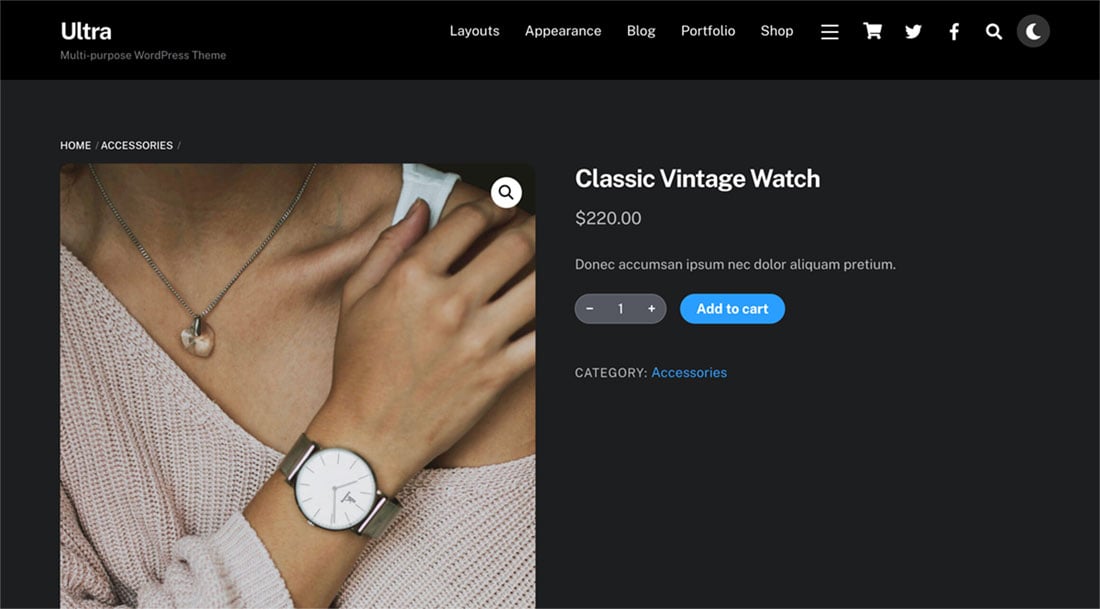
With this enhancement, dark mode styling is applied more smoothly, so the page loads with a cleaner and more consistent appearance. This creates a more polished experience for visitors, especially those browsing in dark mode or low-light environments.
To enable dark mode: with Ultra or Shoppe theme, go to Themify > Theme Settings > Dark Mode, check Enable dark mode.
July 9, 2026 @ 11:35 am
Great releases as always!
July 9, 2026 @ 3:59 pm
Can you give us a tutorial on how to build a mobile menu? One thing I like about Themify is its tutorial videos. Even today, I still watch 10-year-old Themify tutorials on YouTube hahahah.