Fullscreen
Installing the Theme
To install themes with the WordPress theme uploader:
- Download the "theme.zip" file from the Member Area
- Note: some browsers (eg. Safari) auto extract zip files automatically. Right-click on the download link and select "Save Linked File As". This will allow you to download the theme as a zip file.
- Login to your site's WP Admin.
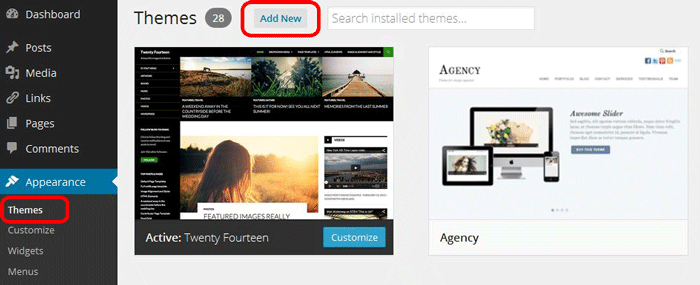
- Go to Appearance > Themes.
- Click on the "Add New" button, then click on the "Upload Theme" button
- Upload the theme.zip file (note: it is the theme.zip, not the theme-psd.zip that you just downloaded from the Member Area).
- Activate the theme
FYI: You can also install themes with FTP method. Read the Installing Themes tutorial for more info.
Demo Import
If you are starting a fresh site, importing the demo content will help you understand how the theme demo is built. The Demo Import feature will import the contents (posts, pages, comments, etc.), Themify panel settings, menus, and widgets setup from our demo to your site. You can erase the demo content afterward.
To import the demo setup:
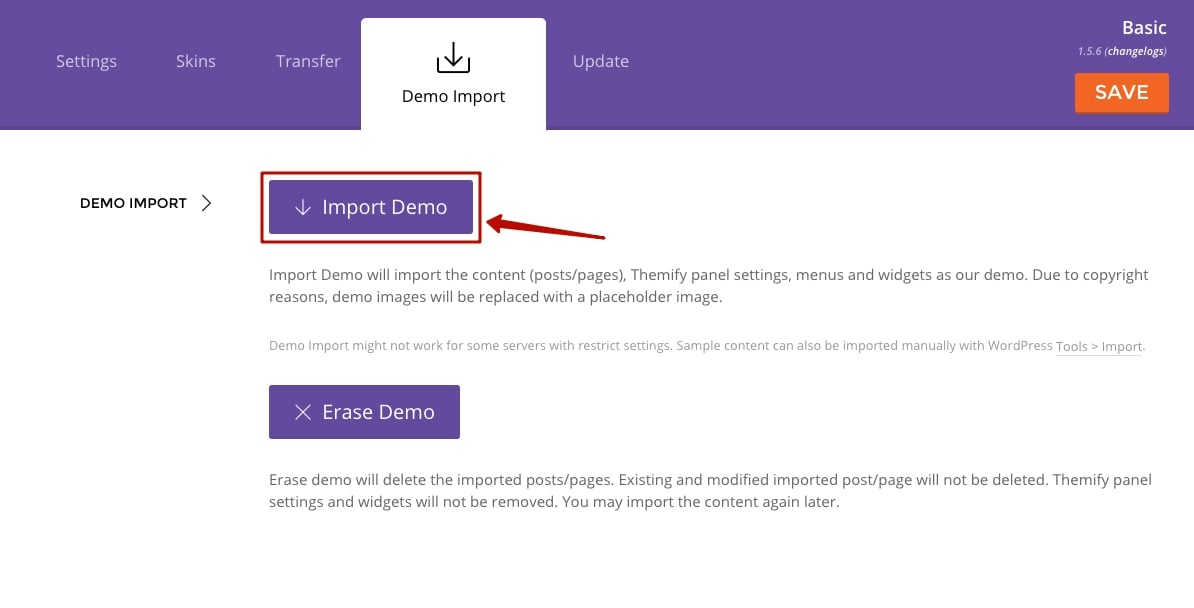
- Go to WP Admin > Themify > Settings > Demo Import and click "Import Demo" button.
- Note that the featured images will be replaced with an image placeholder for copyright reasons.
To erase the demo setup:
- On the Demo Import tab, click on the "Erase Demo" button which will then remove the demo content.
FYI: If the Demo Import does not work on your site, you can use the WP Admin > Tools > Import tool to import the demo content manually.
Site Logo & Tagline
To display a logo image instead of the site name text:
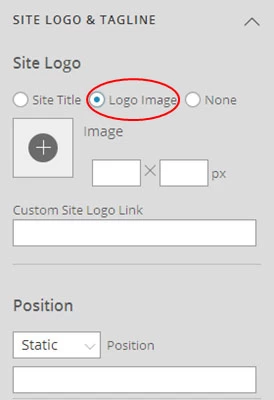
- Go to WP Admin > Appearance > Customize > Site Logo and Tagline.
- Under "Site Logo", select "Logo Image" radio button.
- Upload a logo image.
- Specify the logo image width and height.
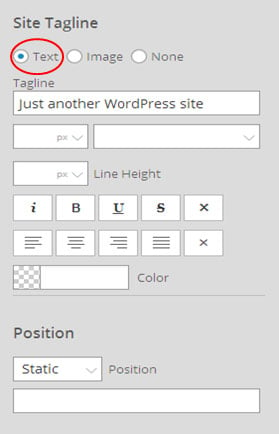
You can also change website Tagline from here:
- Go to WP Admin > Appearance > Customize > Site Logo and Tagline.
- Scroll down and under "Site Tagline" select "Text" radio button.
- Enter your site Tagline.
- Click "Save & Publish".
Main Navigation Menu
To create a custom navigation menu:
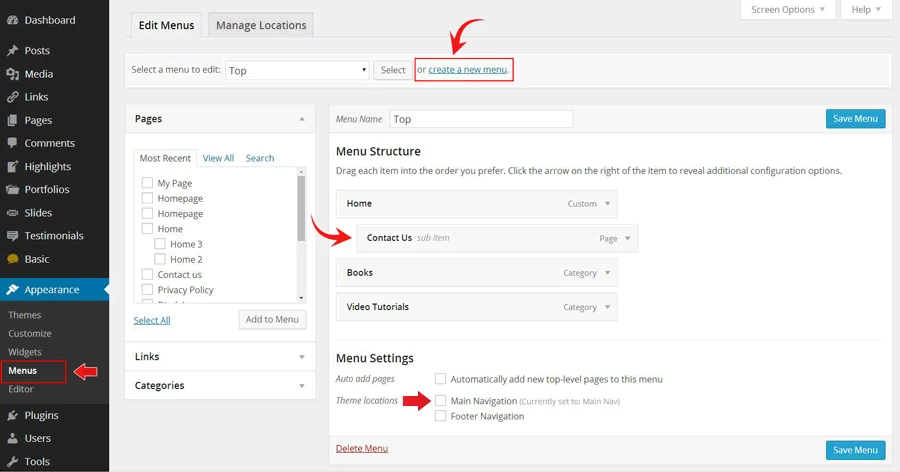
- Go to WP Admin > Appearance > Menus.
- Click on "create a new menu" to create a new menu (eg. Main Menu).
- Add the menu items from the left panels.
- To create a dropdown menu: drag the menu item towards the right (the item(s) will be indented).
- When you are done adding the menu items, click "Save Menu".
- To assign menu locations:
- Scroll down to the bottom where it says "Theme locations" and tick the menu location checkbox.
- Main Navigation = main menu on the header
- Footer Navigation = footer menu on the footer (Note: some themes might not have Footer Navigation).
TIPS: You can display menus on sidebar widgets, remove the main menu, create empty links, and lightbox links. Read Custom Menus for more detailed tutorial.
Setting Up the Social Links
Step 1) To set up the social media links:
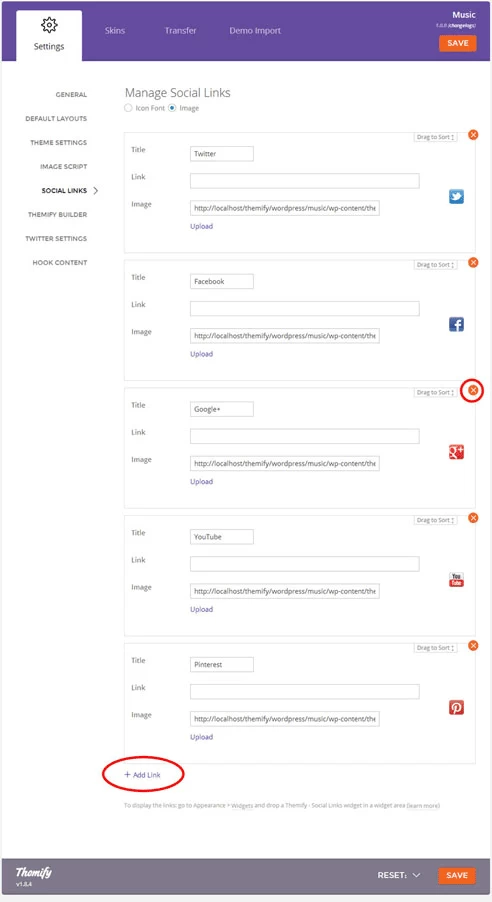
- Go to WP Admin > Themify > Settings > Social Links tab.
- The theme comes with some pre-filled social links. Simply enter your social profile URL in the Link input field. For example, enter 'https://twitter.com/themify' for the Twitter link.
- You can choose to display either "Icon Font" or "Image".
- If "Icon Font" is selected, click on "Insert Icon" to select an icon (over 320+ icons available).
- If "Image" is selected, you can upload your own graphic icon by clicking on the Upload button.
- To add more links, click on the Add Link button at the bottom.
- To remove a link, click on the delete icon.
- To arrange the display order, drag and drop the link container.
Step 2) Displaying the Social Links:
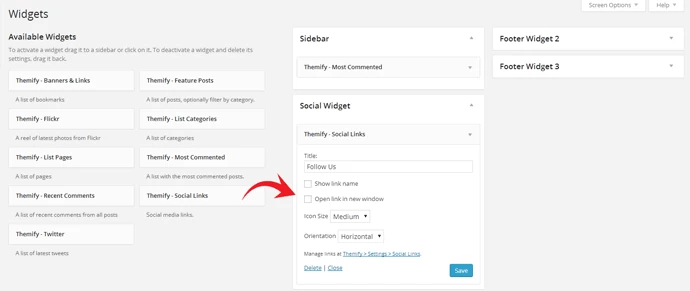
- Once you have the Social Links setup, go to WP Admin > Appearance > Widgets. Drag and drop the Themify - Social Links from the Available Widgets panel to the Social Widget panel.
- Optional: Customize Widget Title - such as "Follow Us". You can also "Show link name" and adjust icon size.
Hiding the RSS Icon
To hide the default RSS icon in the header:
- Go to WP Admin > Themify > Settings > Theme Settings.
- Under the "Exclude RSS Link", tick the checkbox that says "Check here to exclude RSS icon/button in the header".
Hiding the Search Form
To hide the default search form in the header:
- Go to WP Admin > Themify > Settings > Theme Settings.
- Under the "Exclude Search Form", tick the checkbox that says "Check here to exclude search form in the header".
Welcome Message
To display a welcome message on the homepage, go to Themify panel > Settings > Theme Settings, enter the text in the Welcome Text box. The content can be plain text or HTML code. Below is a sample welcome HTML text:
Welcome to my Fullscreen gallery. It is completely responsive with touch swipe support. This custom welcome message can be inserted via the theme option panel. Check my <a href="https://themify.org/fullscreen/portfolio/">Portfolio</a> or <a href="https://themify.org/fullscreen/blog">Blog</a>.

BG Gallery
BG Gallery refers to the fullscreen gallery in the background.
To add BG Gallery Posts
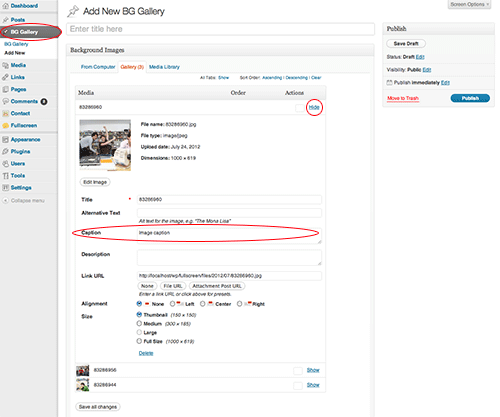
- On the WP Admin side menu, find "BG Gallery" and click Add New
- Enter the title
- Upload gallery images (it works exactly like the WordPress gallery uploader)
- You can drag and drop to sort the image order
- To add image captions: click "Show" and it will expand where you can insert Caption
- After you're done, click "Save all changes"
- Then click "Publish"
Setting default BG Gallery
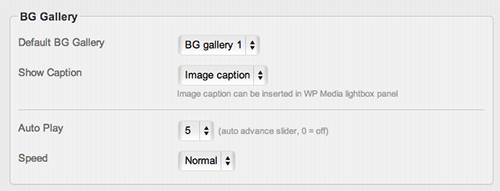
Default BG Gallery will be displayed on the homepage or if the BG Gallery option is empty in the post or page.
- To set default BG Gallery, make sure you have at least one BG Gallery post first
- Go to Themify > Settings > Theme Settings, under the BG Gallery section, select the BG Gallery post
- You may also set the image caption, auto play, and speed option here
Assigning BG Gallery
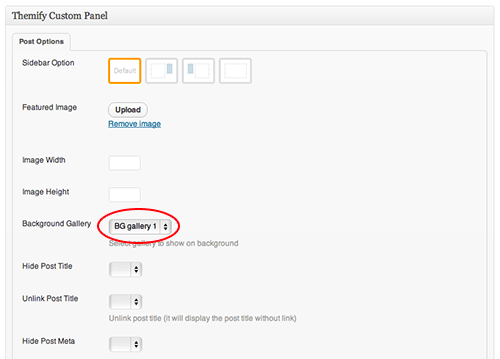
The BG Gallery posts can be assigned individually to any Post or Page. To assign the BG Gallery, select the Background Gallery dropdown in the Themify Custom Panel. If this option is empty, it will use the Default BG Gallery specified in the Themify panel.
Inserting Gallery to Posts or Pages
The gallery can be inserted in any post or page. To insert a gallery, click on "Add Media" button
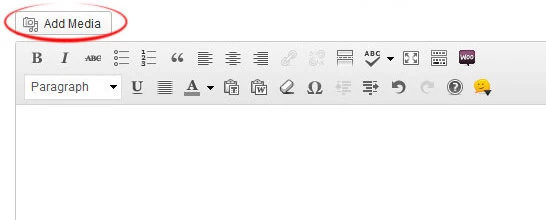
It will open a lightbox for you to create and insert gallery. Read this tutorial for more details on how to use WordPress Gallery.
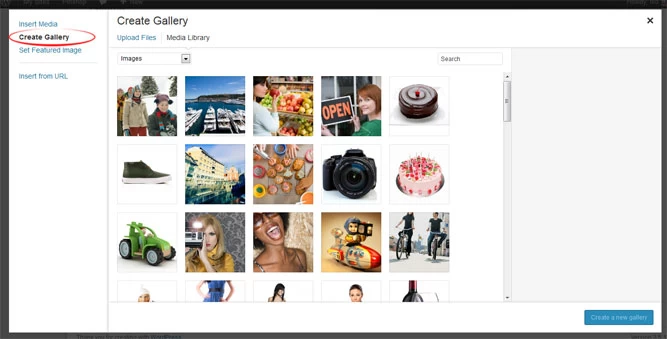
WordPress Gallery Display Mode
There are two gallery display options:
- Fullscreen Swipe = photos are displayed in fullscreen mode with swipe support (mobile friendly)
- Popup Lightbox = photos are displayed in popup lightbox (photo is opened in browser on mobile)

Lightbox Media
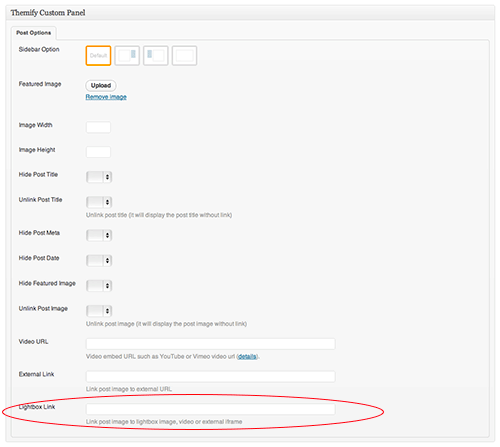
To link the featured image with a lightbox popup such as image zoom, video or an iframe window, enter the URL in the Lightbox Link field under the Themify Custom Panel. The Themify Custom Panel can be found in the post edit page.
- Sample image: https://themify.org/pinboard/files/2012/06/133618178.jpg
- Sample video: http://youtu.be/Abjx1JJO1i8
- Sample iframe: https://themify.me?iframe=true&width=100%&height=100% (you need to add
&iframe=trueat the end of the URL)
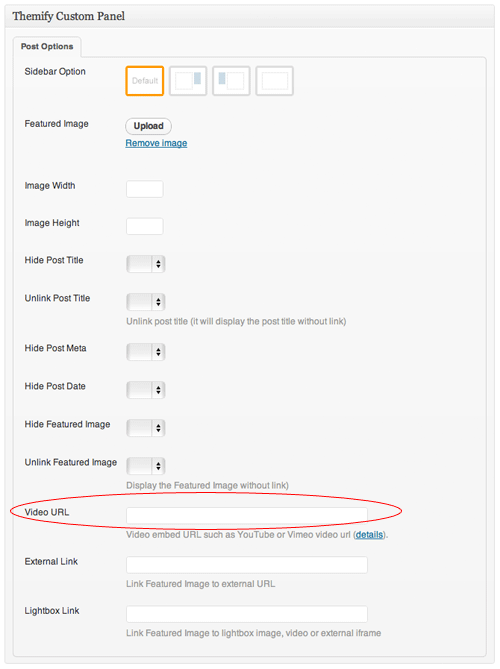
Video Embed
To display a video embed instead of a featured image, enter the video embed URL in the Video URL field under the Themify Custom Panel.
- Sample YouTube: http://youtu.be/Abjx1JJO1i8
- Sample Vimeo: http://vimeo.com/6284199
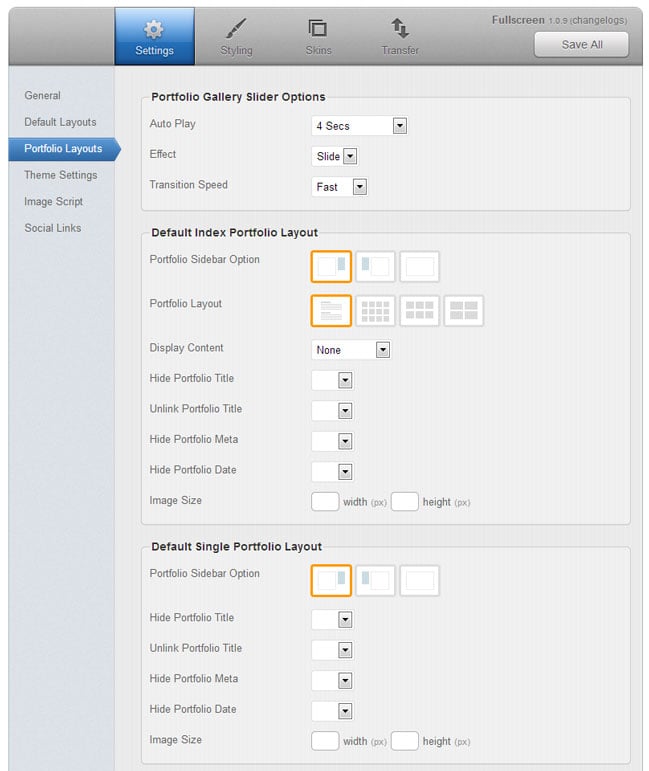
Portfolio Layout Options
To set the layouts of portfolio index and portfolio single page, go to Themify > Settings > Portfolio Layouts.
- Default Index Portfolio Layout = applies to the Portfolio category pages
- Default Single Portfolio Layout = applies to the Portfolio single post page
Changing the portfolio permalink slug
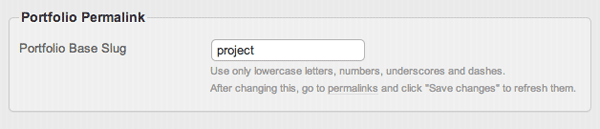
To change the portfolio post base slug, go to Themify > Settings > Portfolio Settings. The default portfolio base slug is 'project' (eg. it would be http://yoursite.com/project/portfolio-name). You may change it to anything (only lowercase letters, numbers, dash and underscore allowed). After you changed the base slug, go to WP admin > Permalinks and click on "Save changes" button to refresh the setting.
Query Portfolios (Portfolio Page)
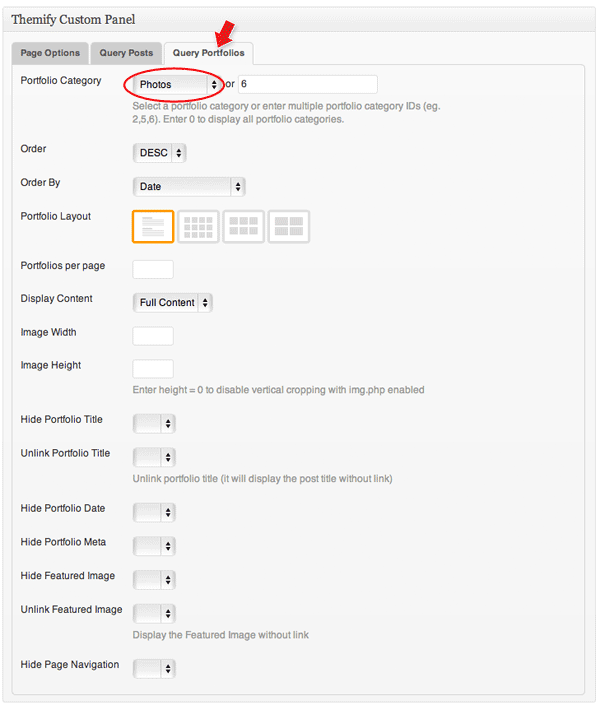
Similar to Query Posts, you can query Portfolio posts from any specified categor(ies).
To create a Portfolio page:
- Add a new Page (eg. Blog)
- In the Themify Custom Panel, click "Query Portfolios" tab and select a Portfolio Category
- The other options such as title, meta, featured image, etc. can be left blank or default (refer to Query Posts above to learn more about these options)
Setting Default Post and Page Layouts
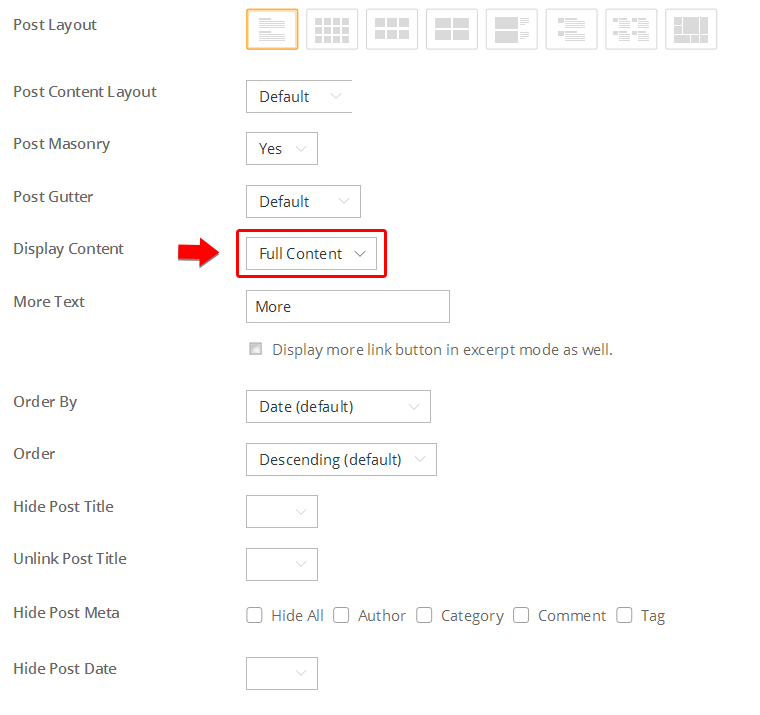
Generally, the theme works out of the box. All the sidebar options and image dimensions are pre-defined in the theme. If you need to change the default sidebar options, featured image dimensions, content/except display, post meta, etc., it can be done in the WP Admin > Themify > Settings > Default Layouts.
There are three default layout options under Themify > Settings > Default Layouts:
- Archive Sidebar Option: refers to the default home page, category, search, archive, tag pages, etc.
- Default Post Layout: is the post page direct URL (also known as "Single Post").
- Note: Some themes may only have 4 layouts.
- Default Static Page Layout: is the static page.
FYI: Read Default Layouts documentation for more info.
Creating a Blog Page
To create a blog page:
- First, create a new Page (go to WP Admin > Pages > Add New), name it "Blog" or any page title as you want.
- View the page on the frontend, click "Turn On Builder".
- Drop in a Post module and configure the options as you like.
Setting a Custom Front Page
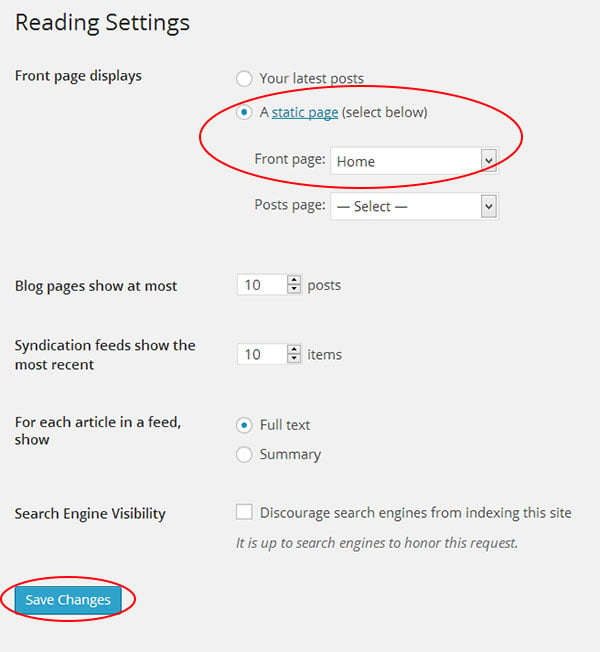
You can set any page as the front (home) page. This means you can use the Builder to design the page and assign it as the front page. To set the Front Page:
- Go to WP Admin > Settings > Reading.
- On the Front page displays, select the "A static page (select below)" option and then select a "Front page".
- Leave the "Posts page" default. If you want to create a custom Blog page, read this tutorial instead of setting the "Posts page".
Adding Widgets
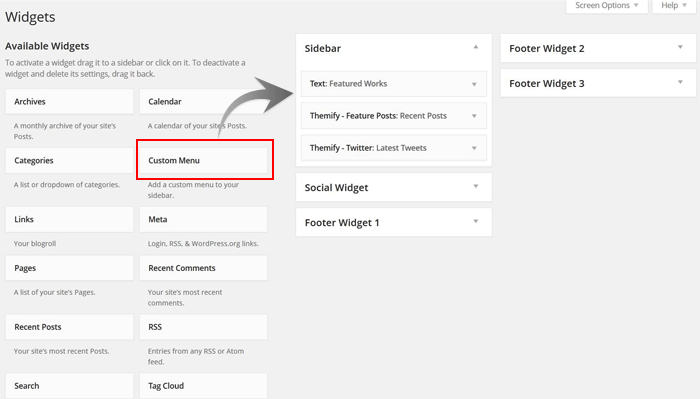
To add widgets to widgetized areas (eg. sidebar and footer widgets):
- Go to WP Admin > Appearance > Widgets.
- The big panel on the left side shows all available widgets. The small panels on the right are the widgetized areas.
- To add a widget: drag and drop the widget from the left panel to the right panel.
- To remove the widget: drag the widget back to the left panel (Available Widgets panel). If you want to keep the widget setting for future use, drag it to the Inactive Widgets instead of the Available Widgets panel. It will save your widget settings. To retrieve the widget, drag the widget from Inactive Widgets panel instead of the Available Widgets panel.
TIPS: You can also add widgets in Appearance > Customize panel.
Theme Skins
To apply pre-designed color skins:
- Go to WP Admin > Themify > Skins, select a skin by clicking on the thumbnail and click Save.
Styling The Theme
To style the theme frontend appearance:
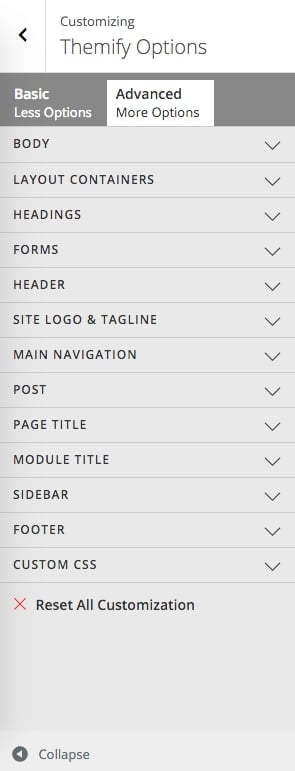
- Go to WP Admin > Appearance > Customize.
- It will take you to the Customize panel with live preview where you can style the appearance of the theme design (ie. color, background, font, spacing, border, etc.).
FYI: Refer to Customize documentation for more info.
Footer Widgets
- To set the Footer Widget column layout, go to WP Admin > Themify > Settings > Theme Settings.

- To drop the widgets in the Footer Widgets, go to WP Admin > Appearance > Widgets.
Footer Text
To replace the footer credit links:
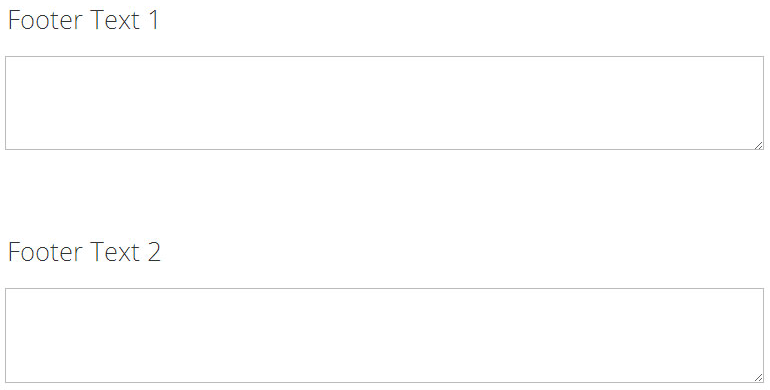
- Go to WP Admin > Themify > Settings > Theme Settings and enter the footer text.
- HTML tags are allowed in the Footer Text.
- To have empty footer text, tick the hide footer text checkbox.